





// how it works
How to Use the Review Features
Welcome to the Review, Avenue’s post-production feedback and revisions interface. We aimed to make the navigation and functionality simple and intuitive, but if you need clarification on how things work, you will find it here.
01
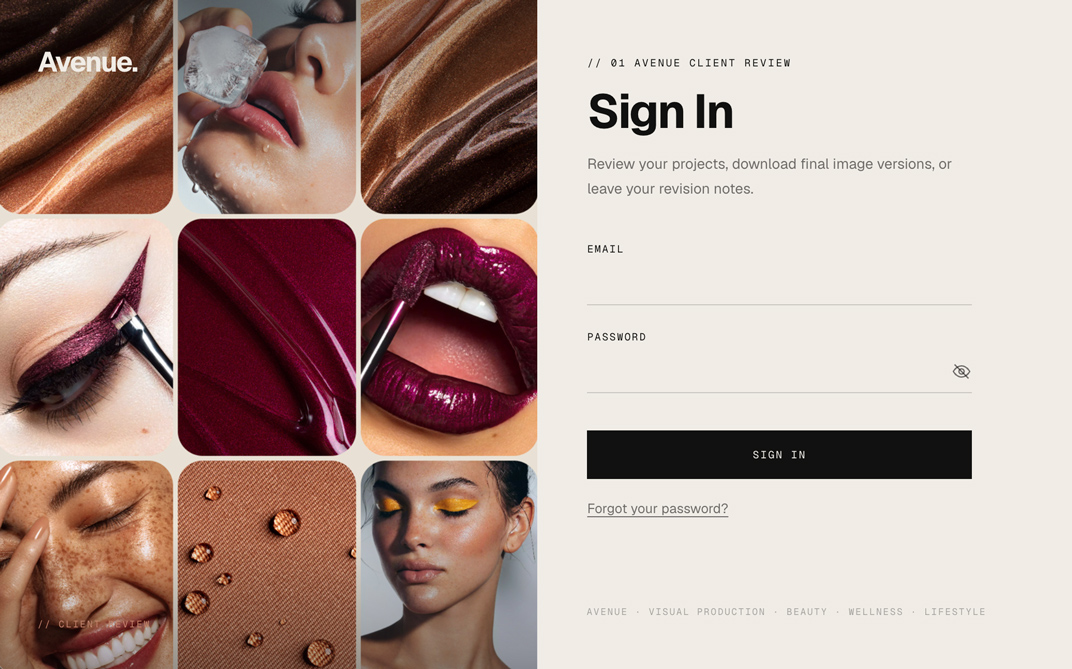
Sign In With Your Email & The Password You Set
- Always sign in with the email address your invitation was sent to. If you forget your password, reset it with the “Forgot your password?” link on the sign-in screen.
- Please don’t keep trying to enter the wrong password, as after 3 attempts, the security mechanism will lock you out for 15 minutes. If you are unsure of the password, reset it so you don’t get locked out.
- Every team member at your brand who reviews the images has their own sign-in and can leave revision notes under their names. We won’t see the notes until they are sent to us via the “Send to Avenue” button. Notes from the Avenue team appear on your images straight away, under the name of the person who wrote them.
02
Every Current Project & Every Shot
- Your default page will show all of the projects and image sets we are currently working on at:
→ https://avenueretouching.com/review/YourBrand - You can switch light and dark themes in the upper right corner of the page.
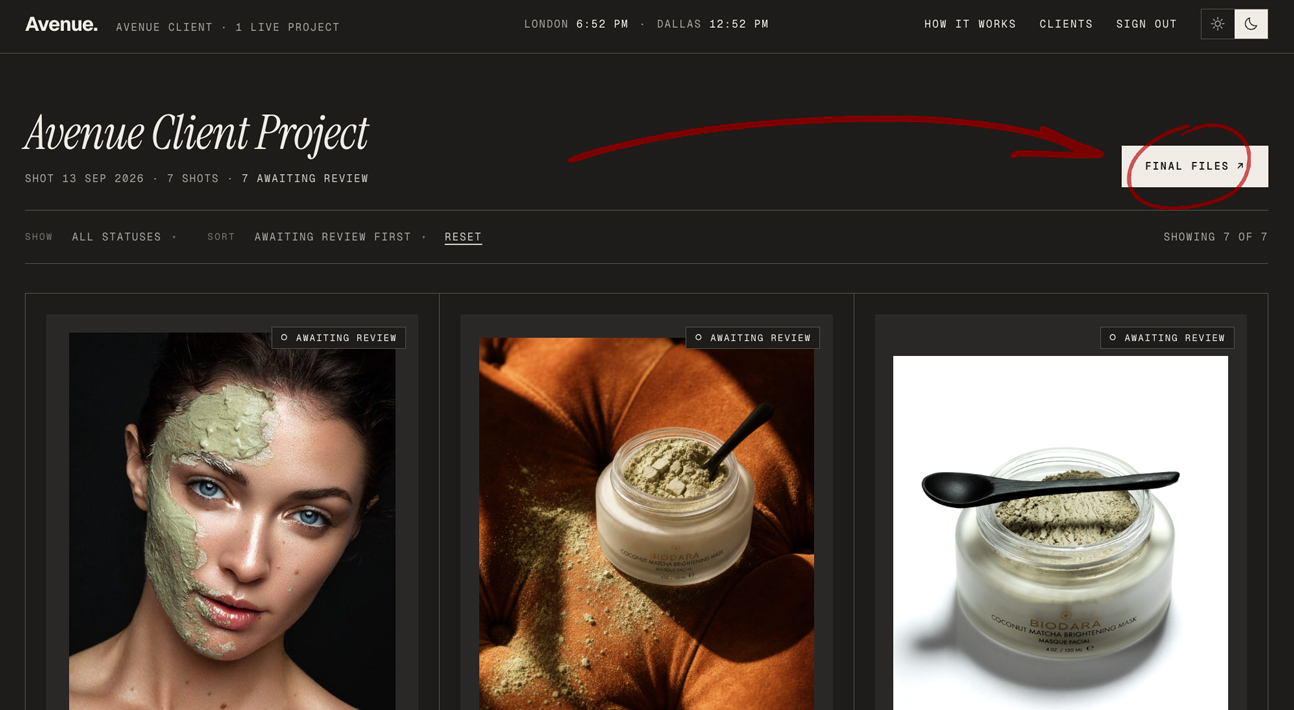
- The images are automatically sorted to show you those that require your review and revision notes at the top of the page. The images with your added notes that require our work will be pushed down, and you will find the approved shots at the bottom of your Projects page.
- Filter to see one status at a time via the Show dropdown, and Sort to order the shots by Awaiting review first, Upload order or Soonest due.
- Each image card contains one shot. By default, you see its latest version, its full file name, and its status. Click on the image to see its previous versions, zoom in to inspect the details, and leave your revision notes.
- When a project has more than one campaign or set of images, each of them will have its own section on your main Projects page. You will see all of the images we’re currently working on by scrolling down the page.
03
Pin Each Note To The Relevant Spot
- To leave your note, click an image card or the “Notes” button under it. On the image pop-up page, you can scroll to zoom, drag to pan, or use the navigation buttons above the image. Use the side arrows to move to the next shot.
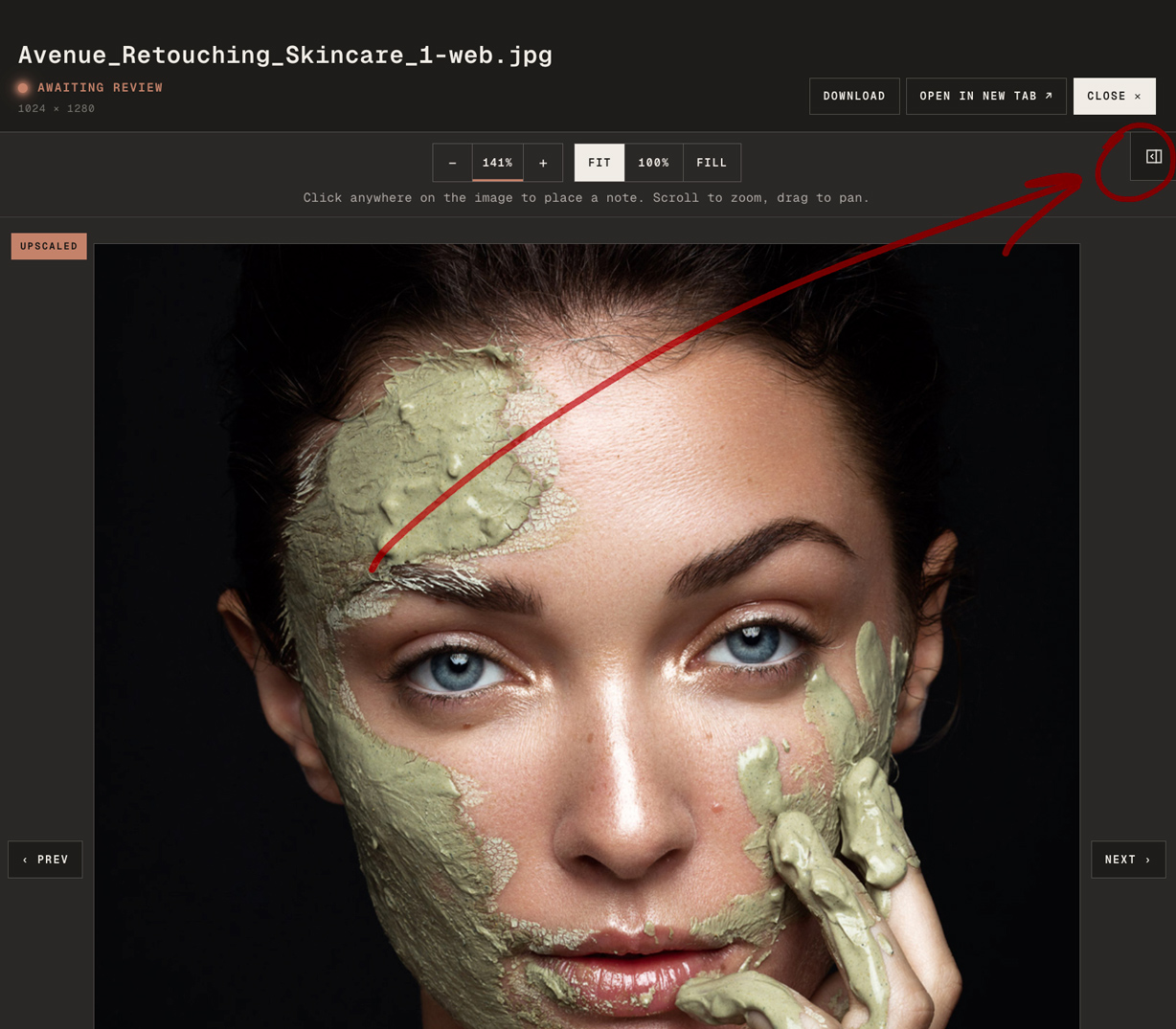
- If you don’t see the Revision Notes sidebar, click the folded tab in the upper-right corner of the image (see the image below). On a phone screen, the notes are under the image.
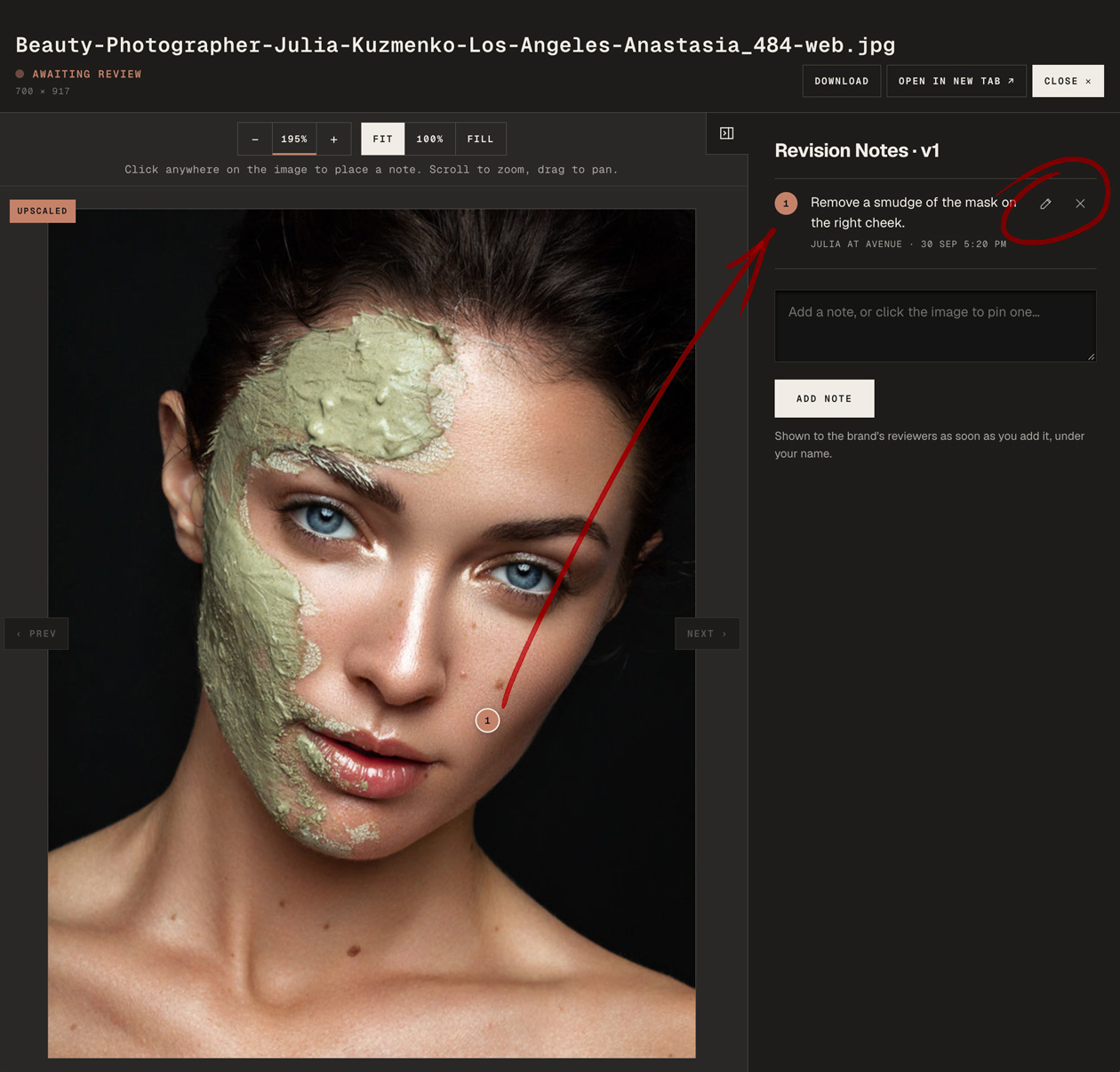
- Click anywhere on the image to leave a numbered pin, and/or type your note in the note input box on the right. Press “Add Note” to save it.
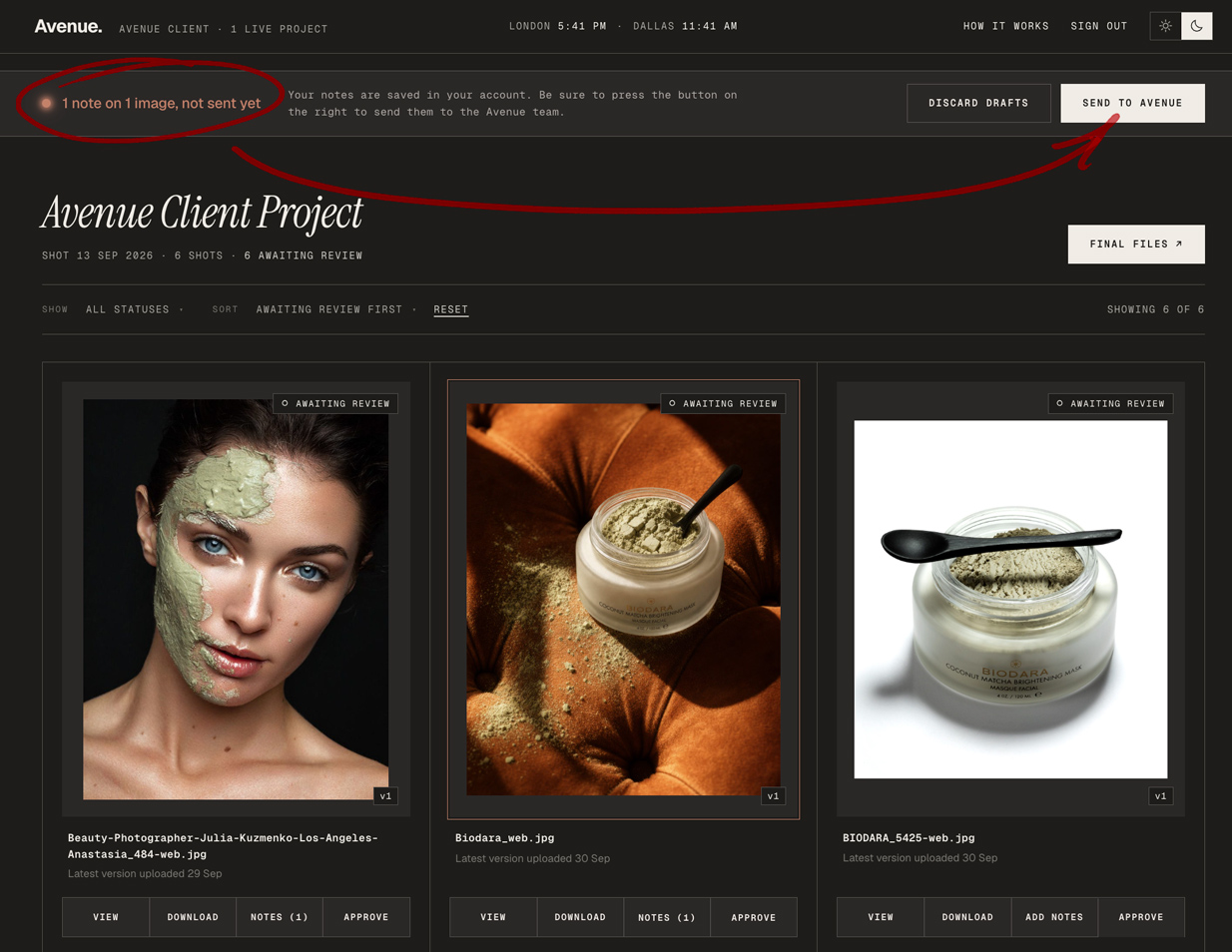
- Your notes are saved and stay private to your account, so you can close your laptop and continue reviewing later until you click the “Send to Avenue” button.
- You can edit your notes before you send them to us (click the icon to the right of any of your notes), move the pins (click the to edit, then drag the pin or click the image where it belongs), or delete them (click the X).
- When you have finished your review, press “Send to Avenue” in the bar at the top of the project page (under the header, or at the bottom of the screen on a phone). This will send all your notes to the Avenue team for the next revision round. Until you send your notes, we do not see them.
- Once sent, the images with your revision notes will display their new status, “Changes requested”. If you leave notes unsent, we will email you a reminder six hours after your last change.
- Before you send your notes, please agree within your team on the changes you want. Each team member’s notes reach us as soon as they press “Send to Avenue”, so notes that contradict each other can lead to miscommunication, costly mistakes and extra revision rounds.
04
Sign Off on an Image Version
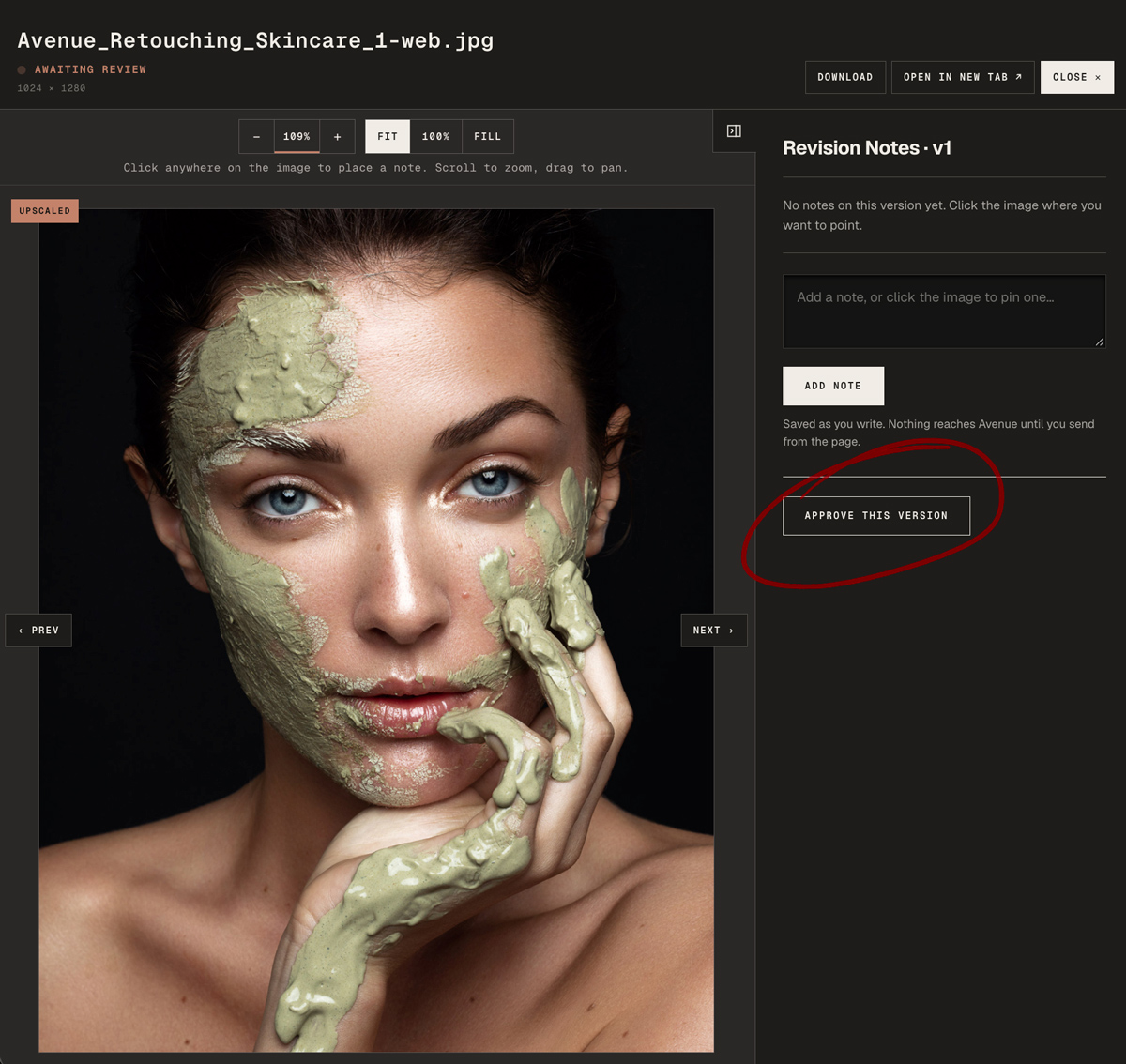
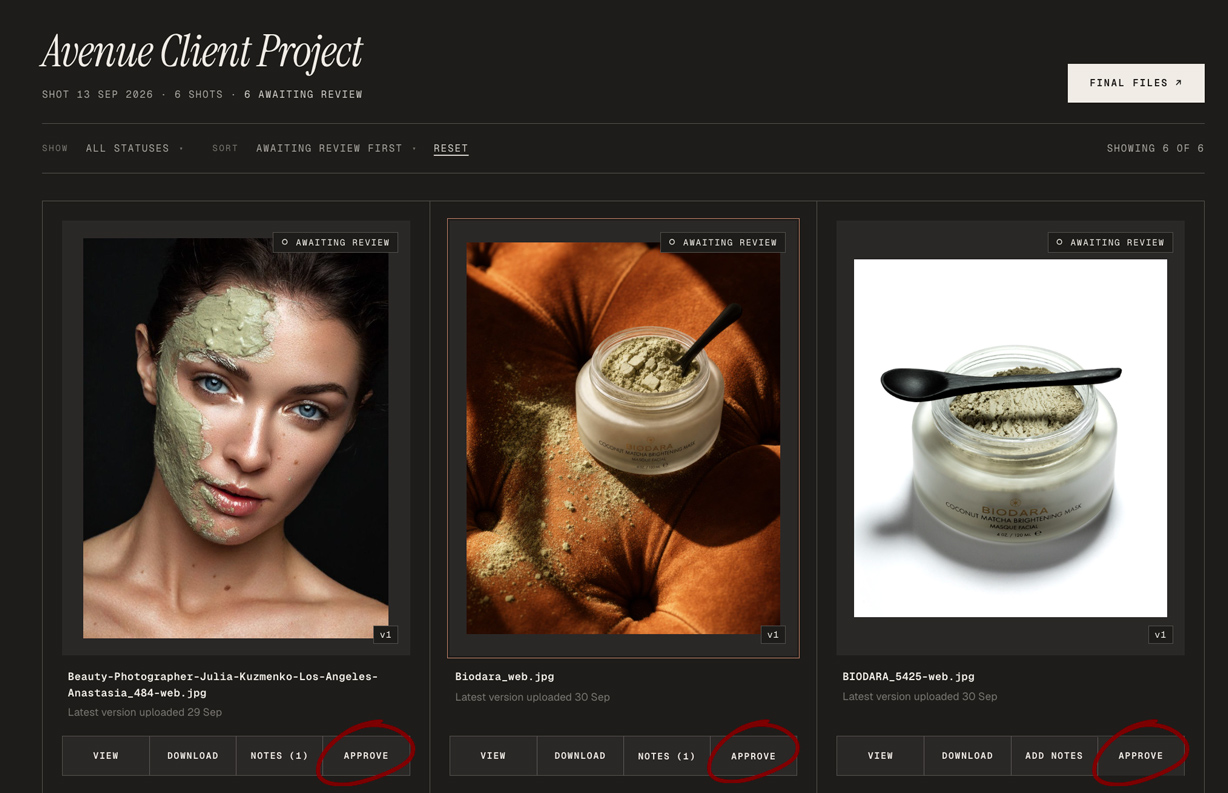
- To approve an image, click “Approve” on a card from the Project page, or “Approve this version” in the expanded view of the image. This signs that version off. Like a note, it waits as a draft until you send it off to Avenue. You can also “Undo” the approval before sending.
- Approving everything and writing no notes is a perfectly good round. The button in the bar then reads “Send approvals”.
- Once sent, the status of the file changes to “Approved”. If you change your mind later, press “Approved ✓” on the card (or “Undo” in the expanded view), then send that change to Avenue as well. An image shows as “Approved” only while no one else at your brand has open notes on that version. If a colleague has sent notes on it, it shows “Changes requested” until we have addressed them.
05
What Happens After You Send
- We read your notes, work through them and upload the next version. When we publish the round, you get an email, and the status of the revised images changes to “Awaiting review”.
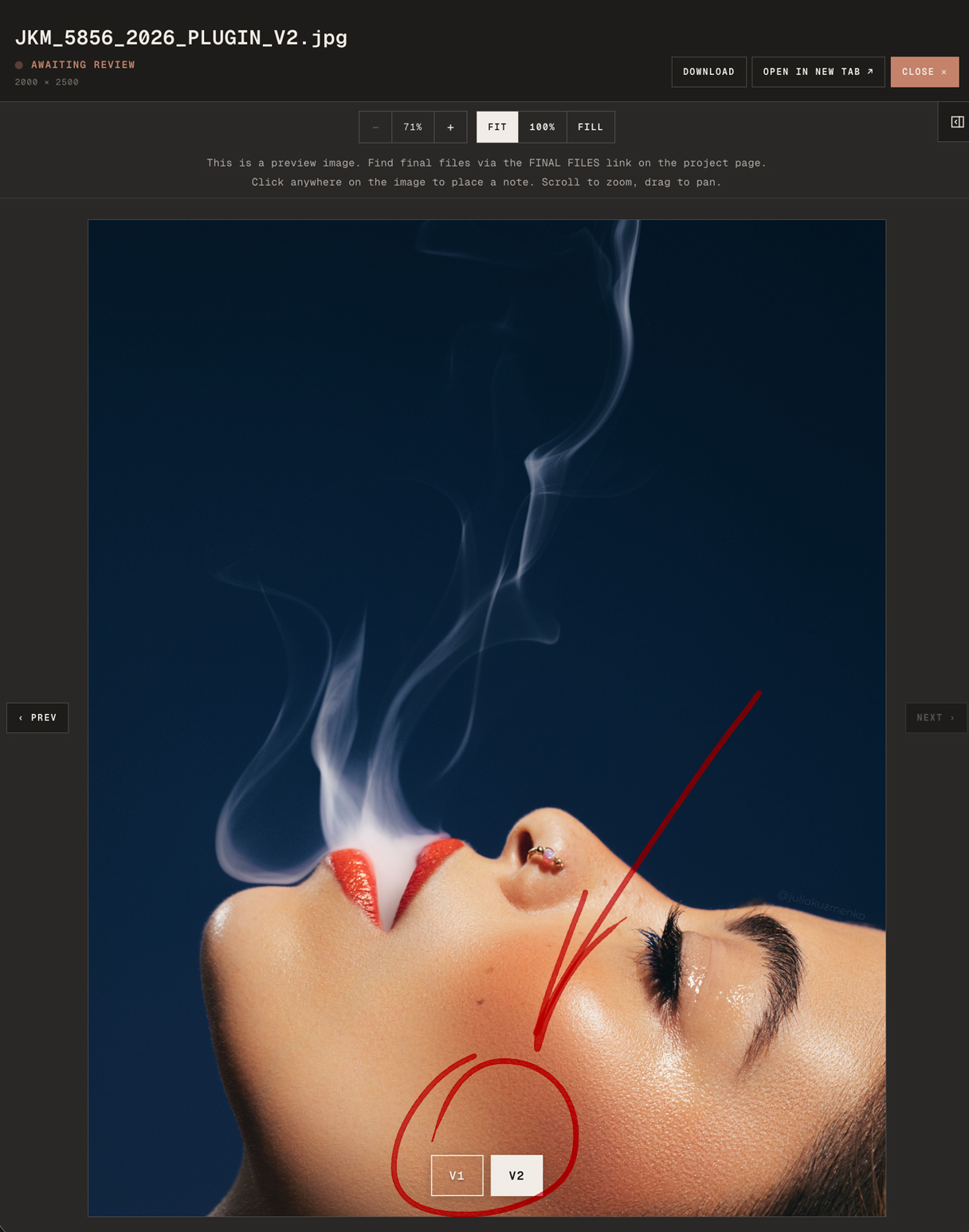
- In the expanded Image view, click the version numbers (V1, V2 or V3) to compare the changes applied.
- Your earlier notes stay on the version they were applied to, marked as addressed in the following version. You can also see our replies, if any, under your revision notes.
- We want to ensure no precious time is wasted on tight post-production timelines, so when our newly submitted round sits untouched by your team overnight, you will get a reminder at 9 AM the next morning, your local time. For a round published on a weekend or public holiday, the reminder arrives at 9 AM on the next working day.
06
Previews Here, Finished Files In Dropbox
- Press “Download” on an image card, or in the expanded view, to save the preview file. “Open in new tab” shows the same preview full size in a new browser tab.
- Final files will be uploaded to the project’s Dropbox folder after they are approved by you and finalized by us. You can access that folder via the “Final files” button at the top of the project.
- IMPORTANT! If any of the images in the set require a specific file export (for example, a TIFF file at high resolution) or specific image proportions, please let us know before we begin retouching.
Questions & Errors
If something on the Review pages is misbehaving, please email the link of the respective page and a screenshot of the issue to [email protected]. Please mention the browser you are using; it will help us to fix it faster.